
SARTrack Android App
Download
SARTrack is currently not available from the Google Play store. You can safely download and install it directly from the SARTrack web site.
Requirements: a phone or tablet running Android 8.0 or higher. Download it on the Android device itself.
Or scan this QR code with your Android device:
Please read the Privacy statement. The SARTrack App is updated continuously while development continues.
What does it do?
The SARTrack App is for the people in the field. It works within the SARTrack system: it connects to your organisation's SARTrack Database Server, and cannot be used on its own.
It is made for places without coverage: what you do without a connection is kept on the phone and sent as soon as there is one again.
Map
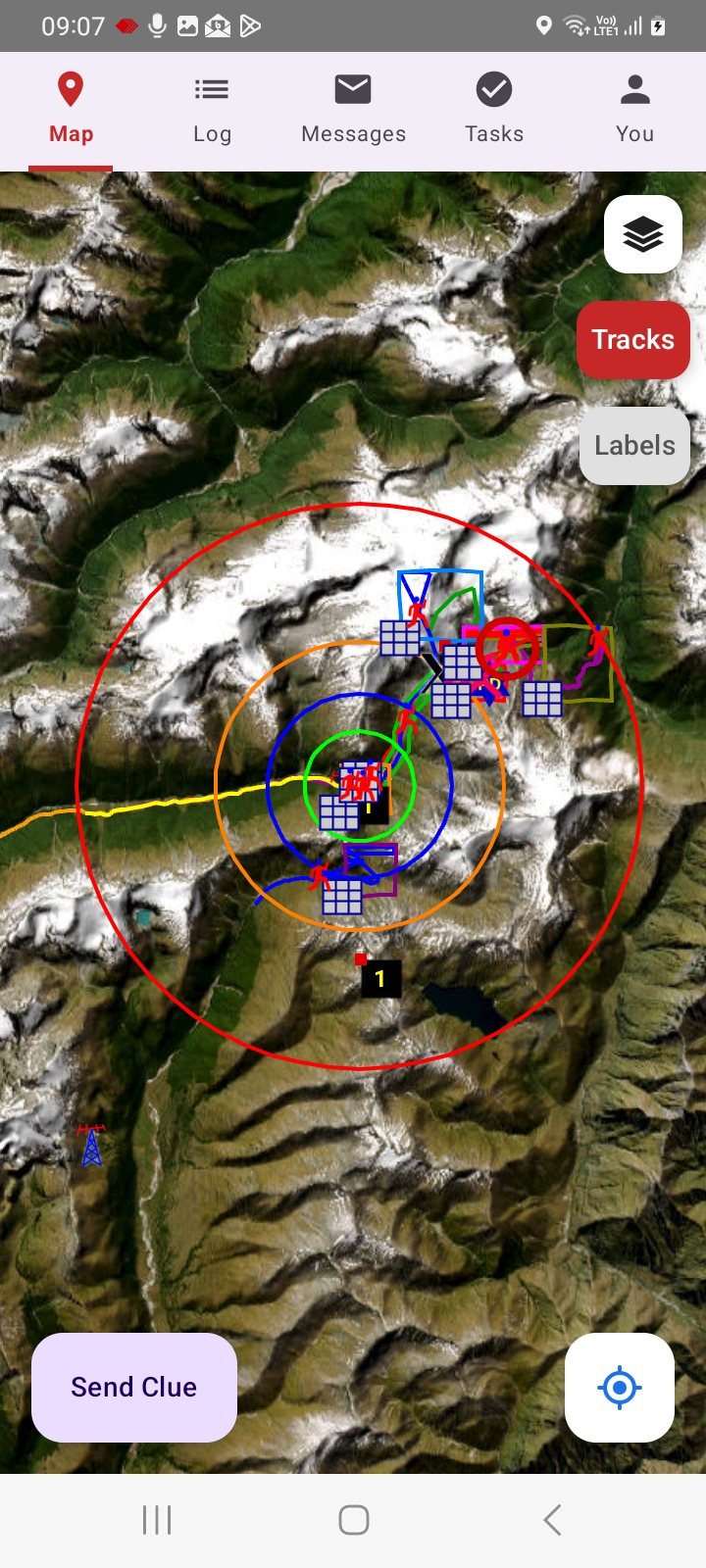
- The Teams, Objects, search areas, Clues and the IPP / LKP / PLS circle systems of the Operation, with SARTrack's icons.
- SARTrack's maps, through your Server (in New Zealand also the LINZ maps). Tracks and Labels can be switched on and off.
- Download an area beforehand, for use without a connection.
Log, Messages and Tasks
- Log: the Operations Log, and new Log entries from the field (with your position when the phone has one). An App-only login sees its own Team's and its own entries.
- Messages: send and receive messages, to a station or to everyone in your organisation.
- Tasks: the Operation's Tasks, your Team's first, with their search area on the map.
- A notification (with SARTrack's sounds) for a new message, a new Task for your Team, and a Log entry for you or your Team, also when the App is closed.
Your position, a Clue, your status
- Sends your position to the Server while Send my position is on, using little battery.
- Send a Clue with a photo, at the spot where you are.
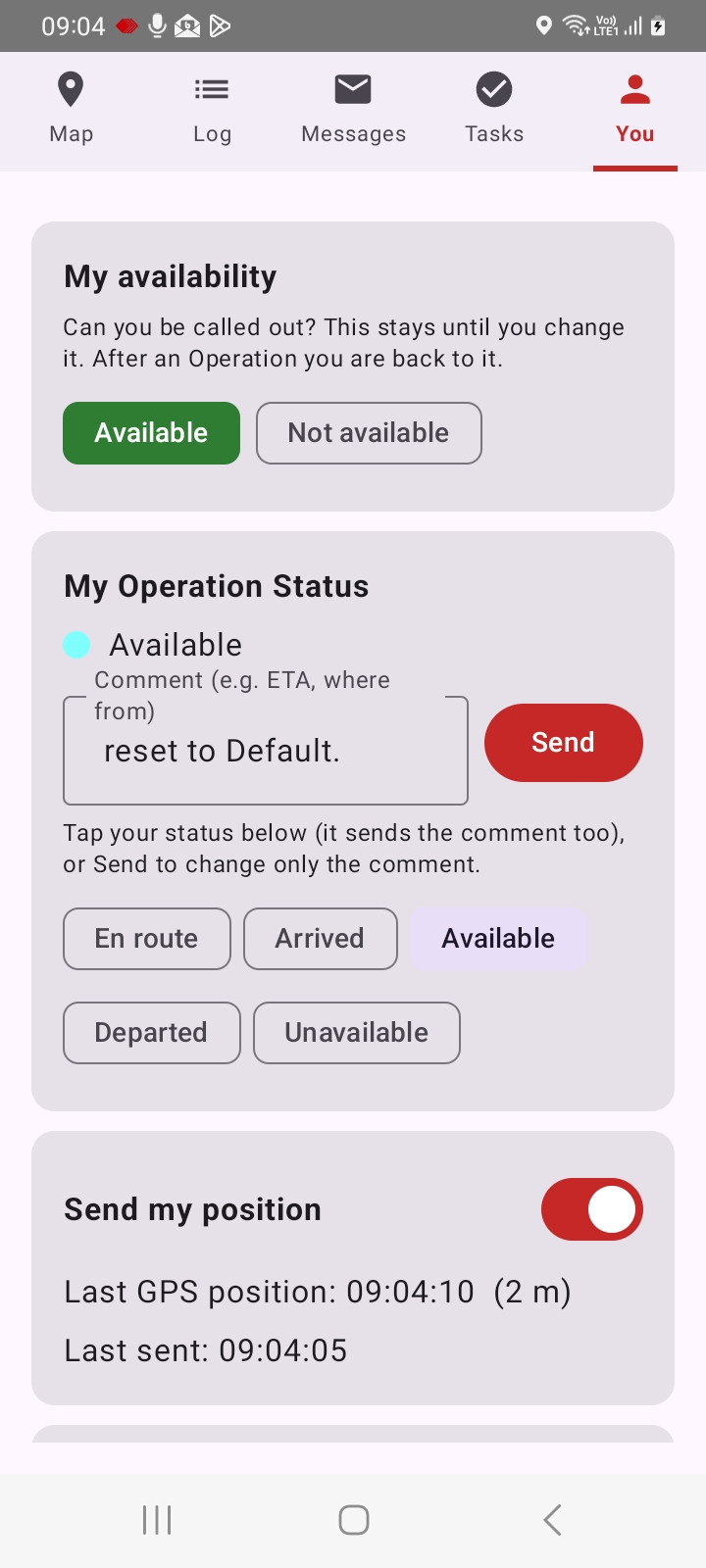
- Your availability and your status in the Operation, on the You tab.
How does it work?
On a WiFi network, the App first looks for a SARTrack Local Database Server there, and uses it when it finds one: in the field, on the field WiFi, without internet. Otherwise it connects to your Internet Server, over the WiFi or over the mobile network.
While you are logged in, SARTrack keeps running in the background (its icon shows at the top of the screen): it stays in touch with the Server, so messages, Tasks and Log entries arrive at once, and your position is sent while Send my position is on.
Out of coverage, nothing is lost: your positions, Clues, messages and Log entries are kept on the phone and sent by themselves as soon as there is a connection again. Each goes into the Operation it was made in, never into another one.
Your position: sent by how you move: more often when you move fast or turn, every 5 minutes while you stand still. After 24 hours the App asks whether to keep sending it.
Setting it up
Every App user needs a login, and every login belongs to a person in SARTrack's Personnel. SARTrack sends the person an invitation by e-mail: the download link, the GroupID, a one-time invitation code and the Internet Server. A Supervisor sets it up in SARTrack (the Windows version), connected to your Database Server.
For a member: in the Personnel window
- Open Personnel and choose the person (or make a New Person). Make sure their e-mail address is right: the invitation goes there.
- On their App login, tick Send an invitation to the SARTrack App (by e-mail) and click OK.
- SARTrack makes a login for the App only (the access level 'Private': it cannot be used in SARTrack itself or on the web site) and e-mails the invitation code.
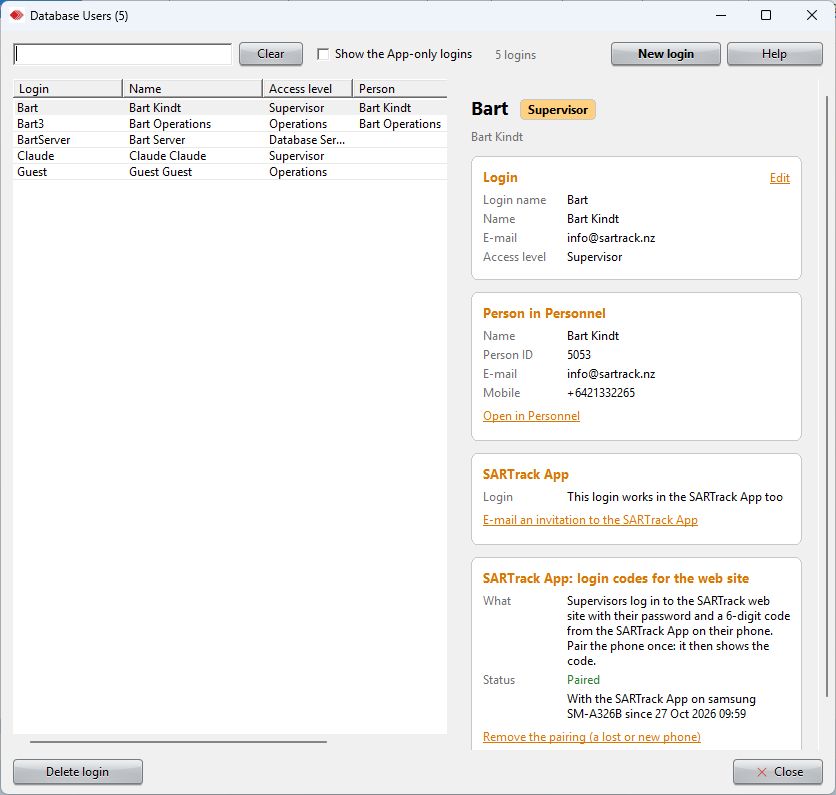
For a new login: in the Database Users window
- Open Database Users (Main Menu: DTB Access) and click New login.
- Fill in the login name, the names, the e-mail address (required), the access level and a password. SARTrack finds the person in Personnel by the e-mail address, or makes them a new person.
- After saving, SARTrack offers to send the invitation to the SARTrack App. It can also be sent later: the login's SARTrack App card, E-mail an invitation to the SARTrack App.
Someone with their own login (Operations or Supervisor, for example) logs in to the App with that same login name and password: their invitation says so, and has no code.
On the phone
- Install the SARTrack App (see Download).
- On the login screen tap I have an invitation code, and enter the GroupID, the invitation code and the Internet Server from the e-mail. The code works once, within 14 days.
- The App logs in, and keeps the login on the phone.
Logging in
- With an invitation code
- Tap I have an invitation code and enter the GroupID, the code and the Internet Server from the invitation e-mail (see Setting it up). The App gets its own login by itself.
- With your own login
- Choose the Internet Server, and enter your organisation's GroupID, your login and password (the same as in SARTrack).
- Remember on this phone
- Keeps the login on the phone, also after logging out: the login screen then offers Log in again. Forget this phone's login removes it.
- The Operation
- After logging in, choose the Operation. Your position is only sent while you are in an Operation.
- Callsign
- Made by the Server from your login. Licensed radio amateurs can use their own callsign: the You tab, I am a licensed radio amateur.
The You tab
- My availability
- Available or Not available to be called out. It stays until you change it, and after an Operation you are back to it. SARTrack shows it in its Personnel window.
- My Operation Status
- En route, Arrived, Available, Departed or Unavailable, with a comment (an ETA, where from). In a Team, your status is set in SARTrack's Team Setup.
- Send my position
- Switches the sending of your position on and off, with the time of the last GPS position and the last one sent. Keep tracking with the screen off appears when the phone may stop it to save battery.
- Login codes for the SARTrack web site
- For Supervisors: the 6-digit code for logging in to the web site. When the web site waits for it, the phone shows a notification that opens the code.
- Also
- Change or Leave the Operation, the Server the App is connected to, a newer App when there is one, and Log out.
Your availability and status need a login that is linked to your record in SARTrack's Personnel, as an invitation login always is.
Sending a Clue
A Clue is something found in the field. Tap Send Clue on the map, say what was found, and take a photo (or choose one). The Clue is placed where the phone is now.
The App uses the phone's GPS for it. When the position is not exact yet (not from the GPS, more than 50 m out, or older than 2 minutes) it says so: Wait for the GPS, or Send anyway.
With a connection the Clue goes to the Server at once; without one, as soon as there is a connection again. In an EMCOMM Operation it is called an Incident.
Feedback
A problem with the App? On the You tab, under A problem with the App?, tap Send my log to the Server and say what happened. Or e-mail support@sartrack.nz.
A screenshot helps: on most phones, press Volume-Down and Power together for a second, then share it by e-mail.
And sorry, but no: there will not be an iPhone version. 70% of all the source code would have to be rewritten, and many things are in fact impossible on an iPhone (and there are other reasons too).